
Overview
This guide provides step-by-step instructions for exporting NWEA MAP Reading Fluency data from NWEA’s administration panel. Follow these instructions to ensure you retrieve and securely send the correct data to ECRA Group.
Instruction Guide
Step 1 – Logging In
– Log in to NWEA at sso.mapnwea.org/auth/login -OR- your district’s designated NWEA login page.
Step 2 – Accessing MAP Reading Fluency Reports
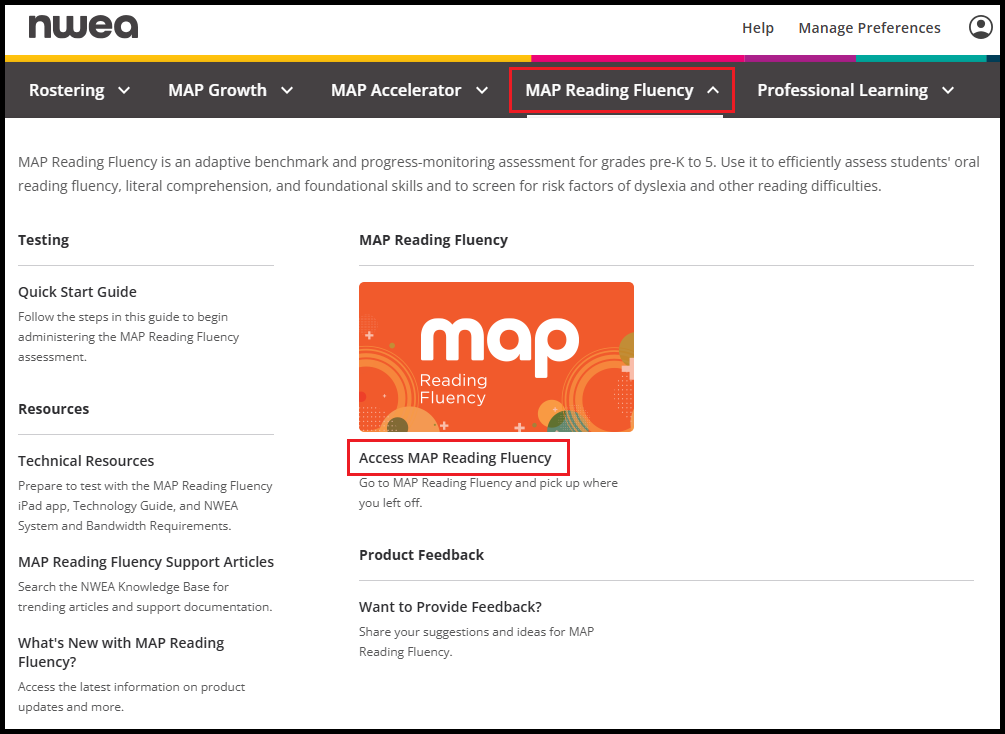
– Click MAP Reading Fluency in the menu bar at the top of the page.
– In the panel that expands, click Access MAP Reading Fluency under the MAP Reading Fluency header.
Step 3 – Accessing Exports
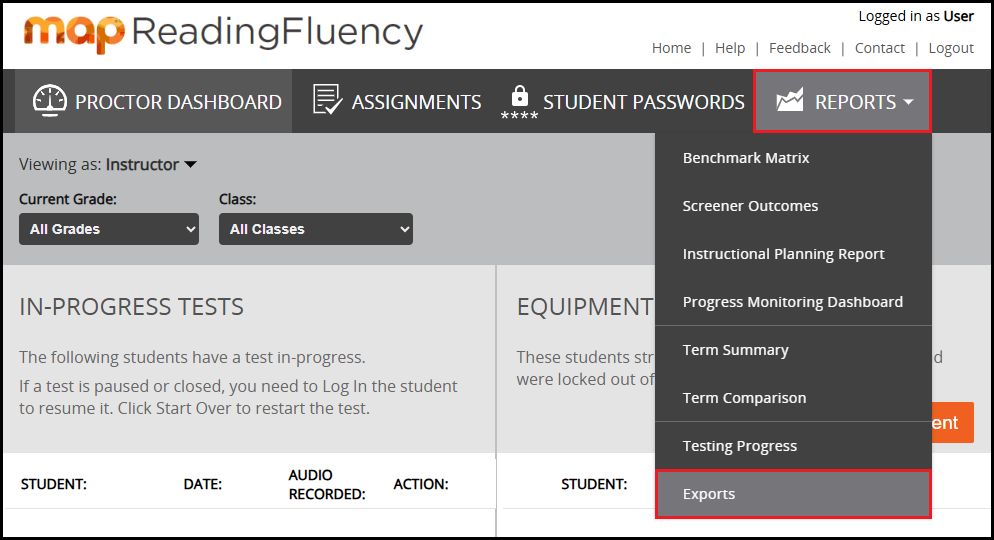
– Click REPORTS in the menu bar at the top of the page.
– Select Exports from the dropdown menu.
Step 4 – Setting Export Options
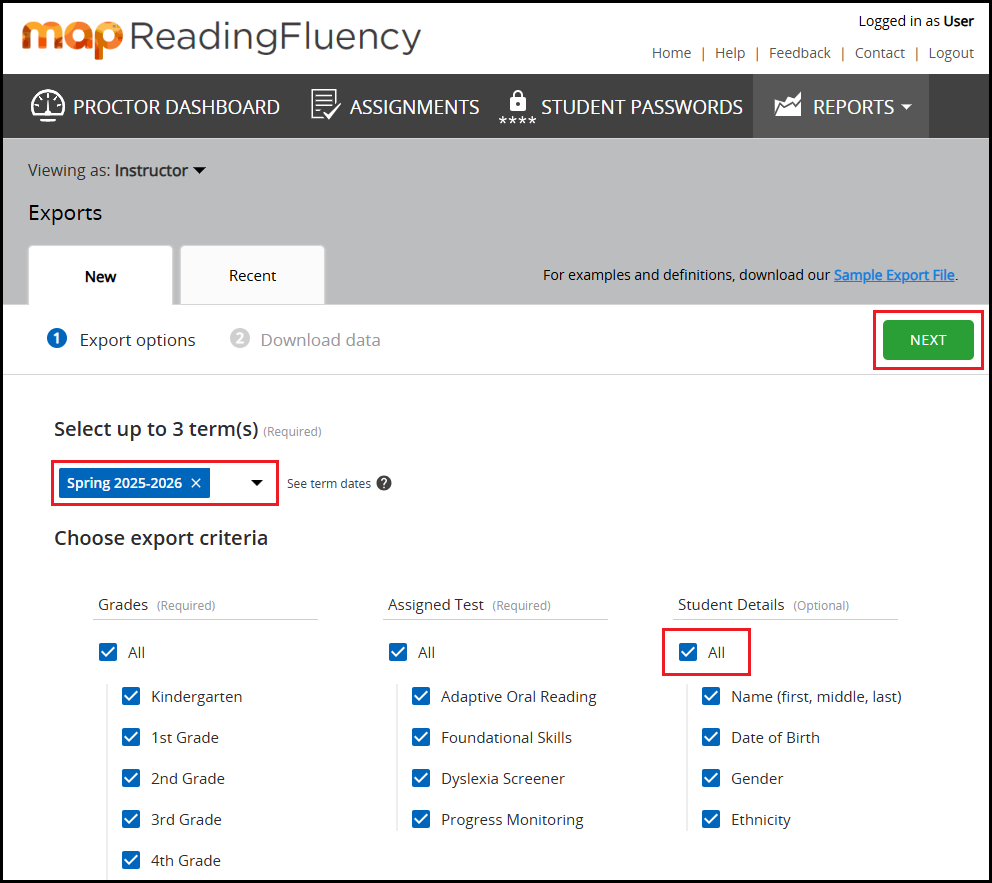
– Term will default to the most recent term. Select a different term from the dropdown if desired.
– Keep All Grades and All Assigned Tests selected.
– Under Student Details, select All.
– Click Next.
Step 5 – Downloading the Data File
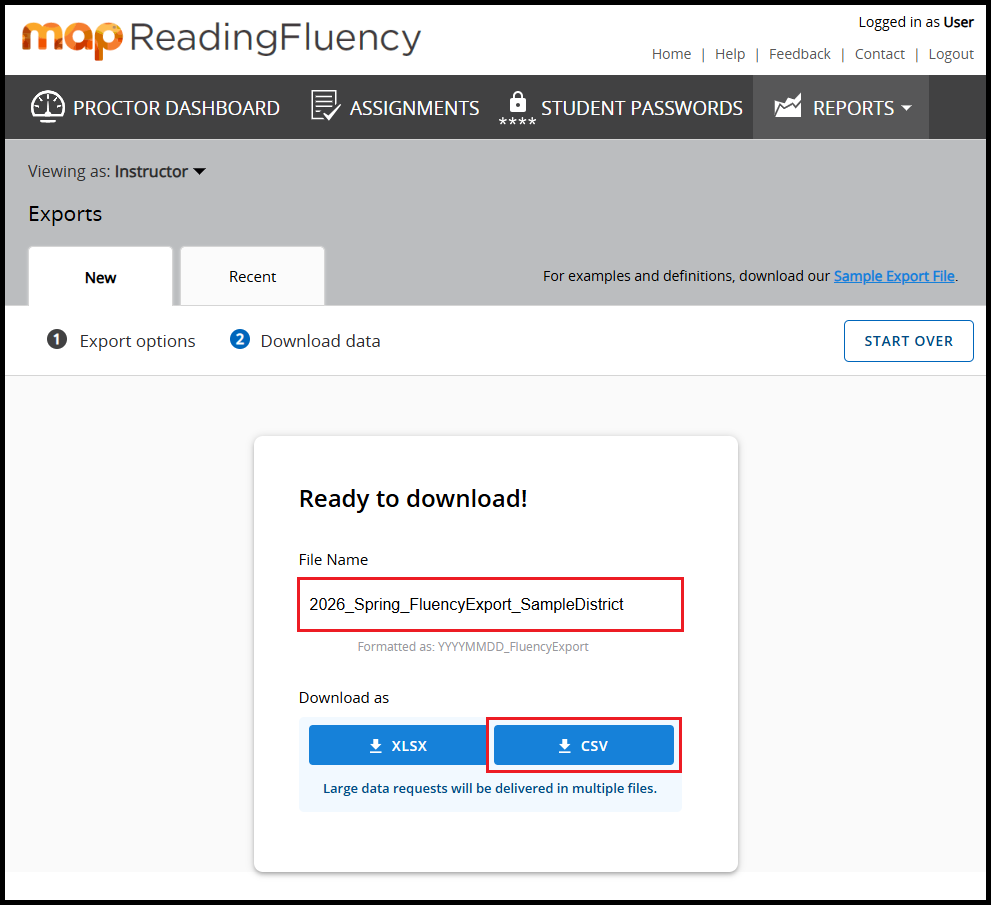
– Add the following information to the File Name before downloading:
– Term selected for download
– District name
– Click CSV in the bottom right corner.
Step 6 – Sending Data to ECRA Group
– Send the downloaded data file to ECRA using your district’s secure data transfer folder.