
Overview
This guide provides Illinois districts with step-by-step instructions for exporting teacher rosters from the ISBE IWAS Student Information System (SIS). Follow these instructions to ensure you retrieve and securely send the correct data to ECRA Group.
Instruction Guide
Step 1 – Logging in
– Log into ISBE IWAS at apps.isbe.net/iwas/asp/login.asp.
Step 2 – Accessing the Student Information System
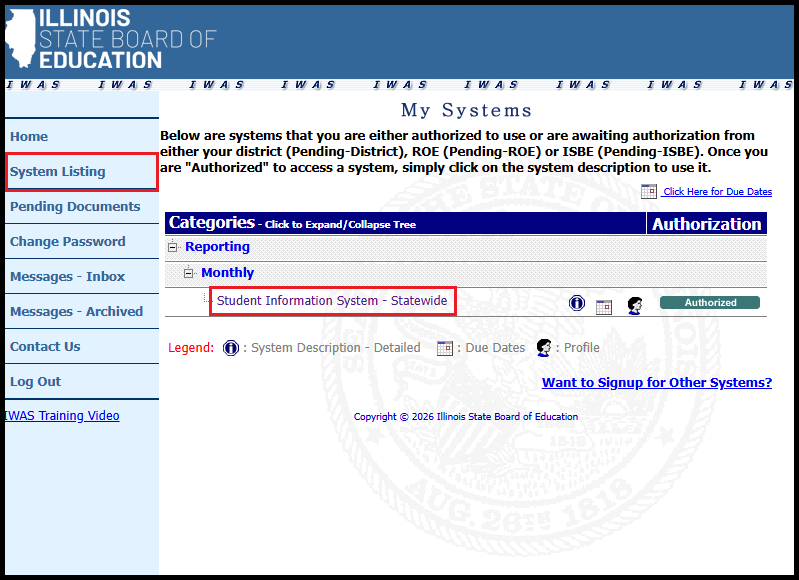
– Click System Listing in the left sidebar.
– Click Student Information System – Statewide.
Step 3 – Requesting Student Course Assignment File
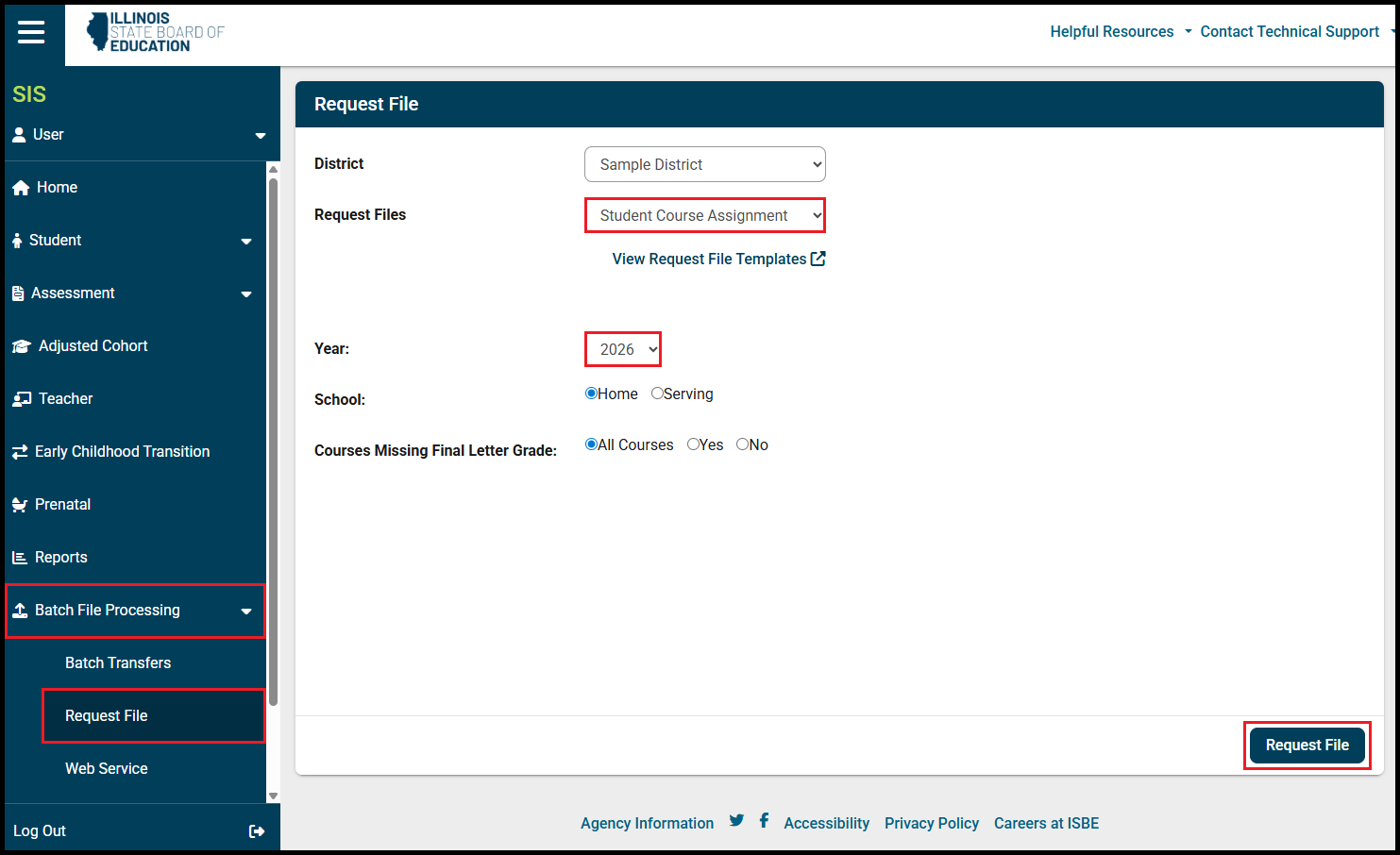
– Click Batch File Processing in the left sidebar.
– Select Request File from the expanded menu options in the left sidebar.
– Select Student Course Assignment from the Request Files dropdown.
– Year will default to the current school year. Select a different year from the Year dropdown if desired.
– Keep Home and All Courses selected.
– Click Request File in the bottom right corner.
Step 4 – Requesting Teacher Course Assignment Entry File
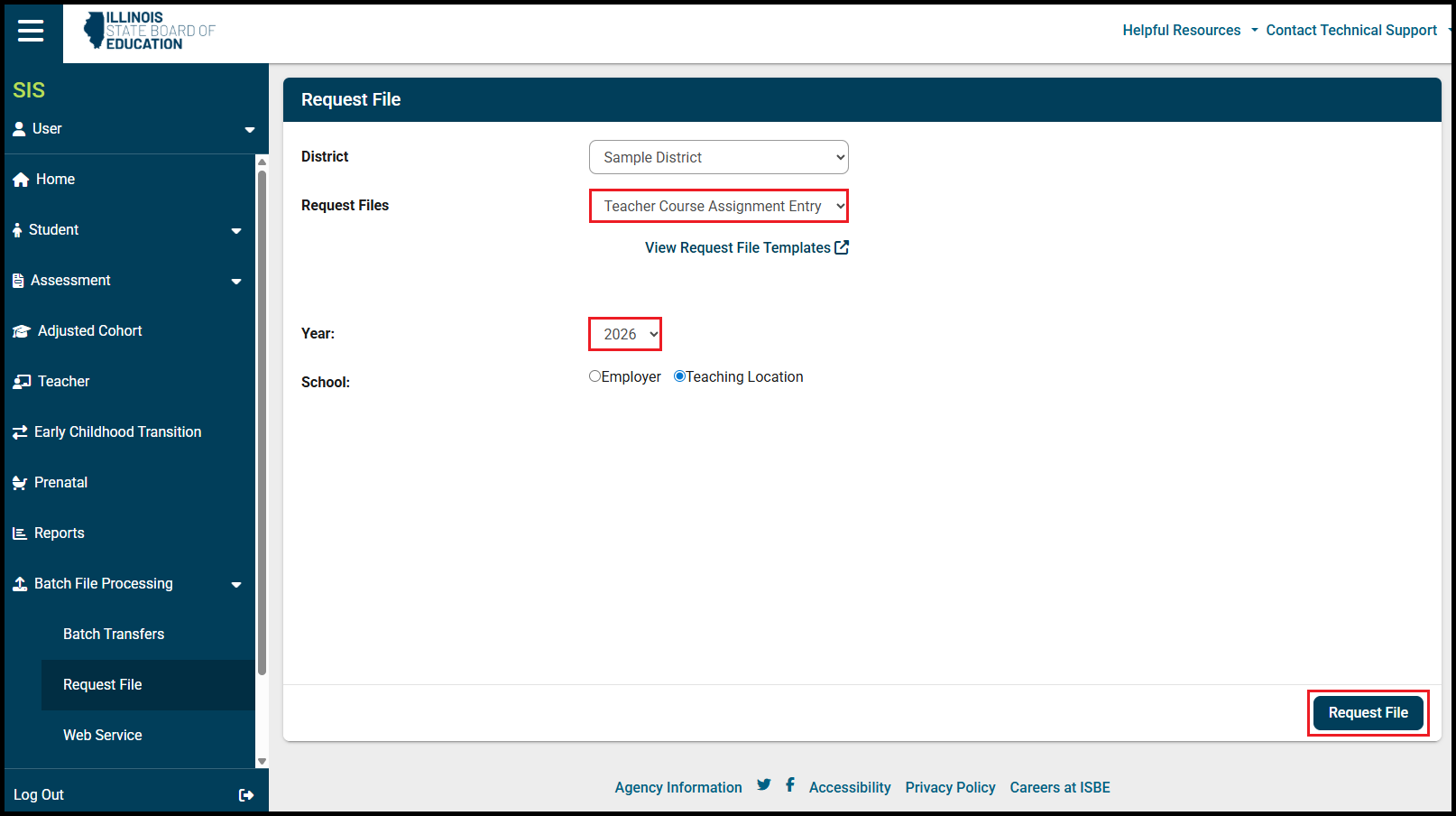
– Select Teacher Course Assignment Entry from the Request Files dropdown.
– Year will default to the current school year. Select a different year from the Year dropdown if desired.
– Keep Teaching Location selected.
– Click Request File in the bottom right corner.
Step 5 – Downloading Files
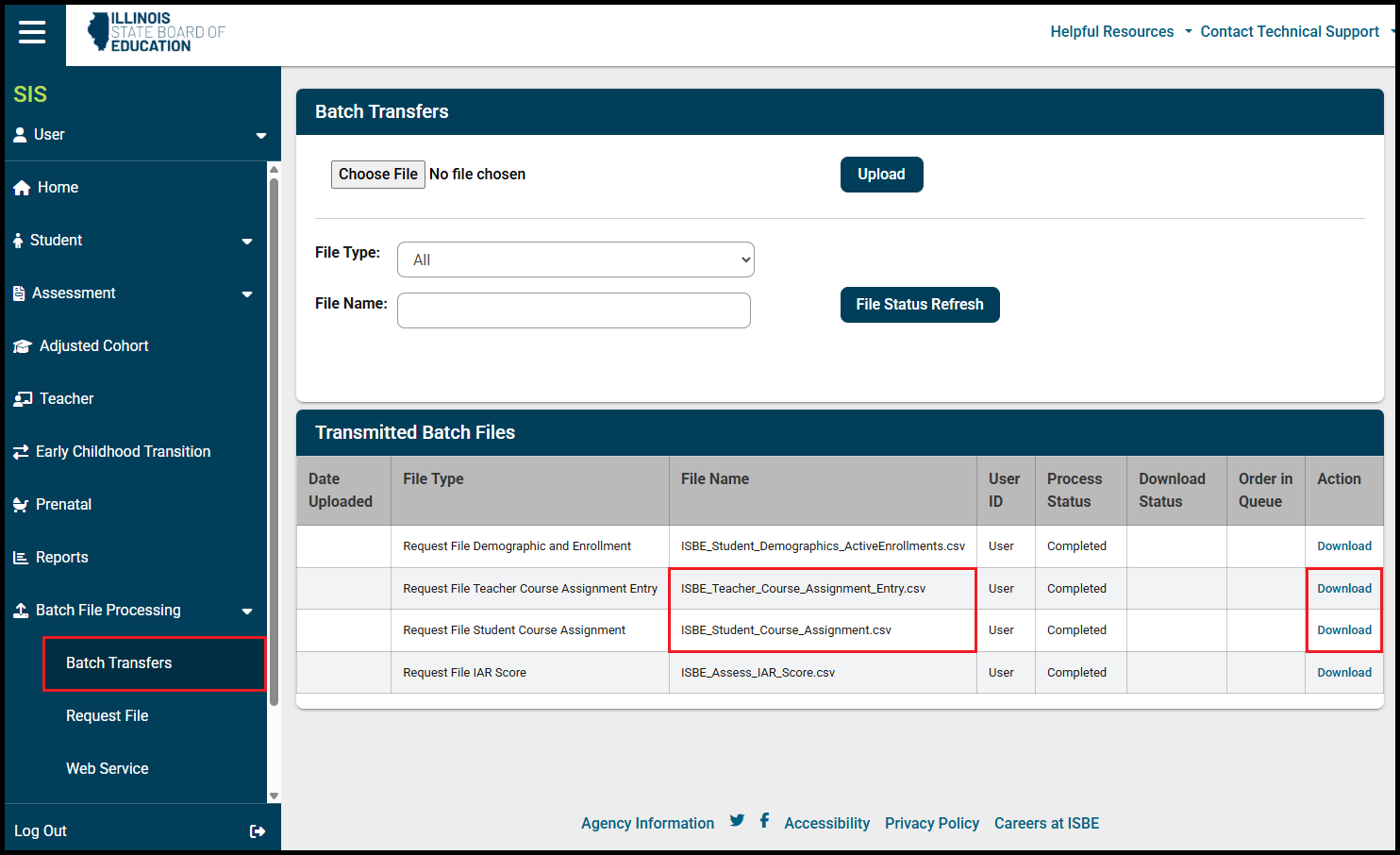
– Click Batch Transfers in the expanded Batch File Processing menu in the left sidebar.
– Your most recently requested file will be at the top of the list. The files for Teacher Rosters will be called ISBE_Student_Course_Assignment and ISBE_Teacher_Course_Assignment_Entry.
– When the files are ready, click Download on the right side of each file row. Files are usually read within a few minutes but can take up to 24 hours when the IWAS system is busy.
Step 6 – Sending Data to ECRA Group
– Send the downloaded data files to ECRA using your district’s secure data transfer folder.