
Overview
This guide provides step-by-step instructions for creating a new user account in the FastBridge platform. Follow these instructions to ensure proper setup. You can also use the guide available on the Renaissance Support website.
Instruction Guide
Step 1 – Logging in
– Important Note: Only the Master Account Administrator for your district will be able to create a new District Manager user.
– Log in to FastBridge at auth.fastbridge.org/login -OR- your district’s designated Renaissance login page.
Step 2 – Accessing Add User Page
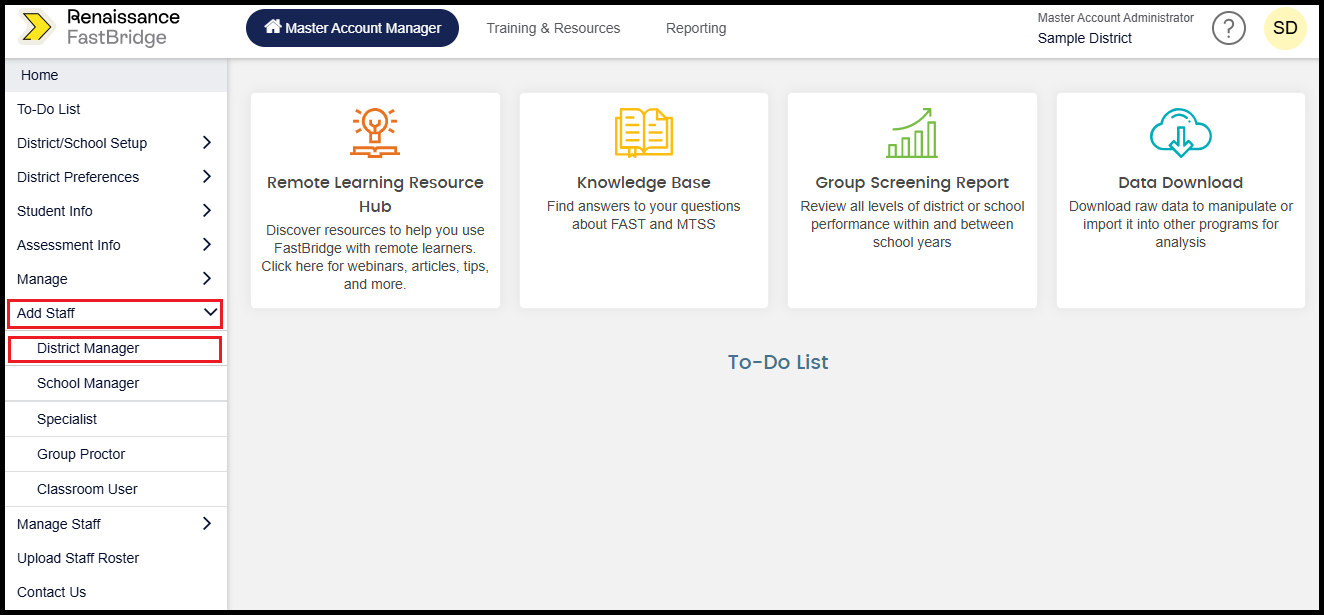
– Click Add Staff in the left sidebar.
– Select District Manager from the expanded Add Staff menu.
Step 3 – Creating a New User
– Create a new user account with the following information:
– Name: ECRA Group
– Primary E-mail & User Id: combine your district name + @ecragroup.com (e.g., SampleDistrict@ecragroup.com).
– Password: Enter a temporary password.
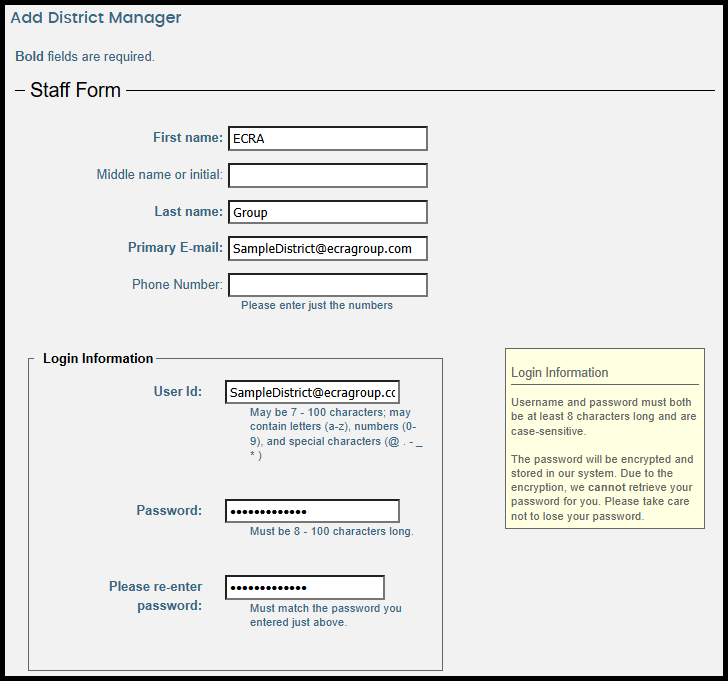
– Click Submit >>.
Step 4 – Notifying Your ECRA Analyst
– Email your ECRA Analyst the username and temporary password you created.
