
Overview
This guide provides step-by-step instructions for exporting NWEA MAP data from NWEA’s administration panel. Follow these instructions to ensure you retrieve and securely send the correct data to ECRA Group.
Instruction Guide
Step 1 – Logging In
– Log in to NWEA at sso.mapnwea.org/auth/login -OR- your district’s designated NWEA login page.
Step 2 – Accessing MAP Growth Reports
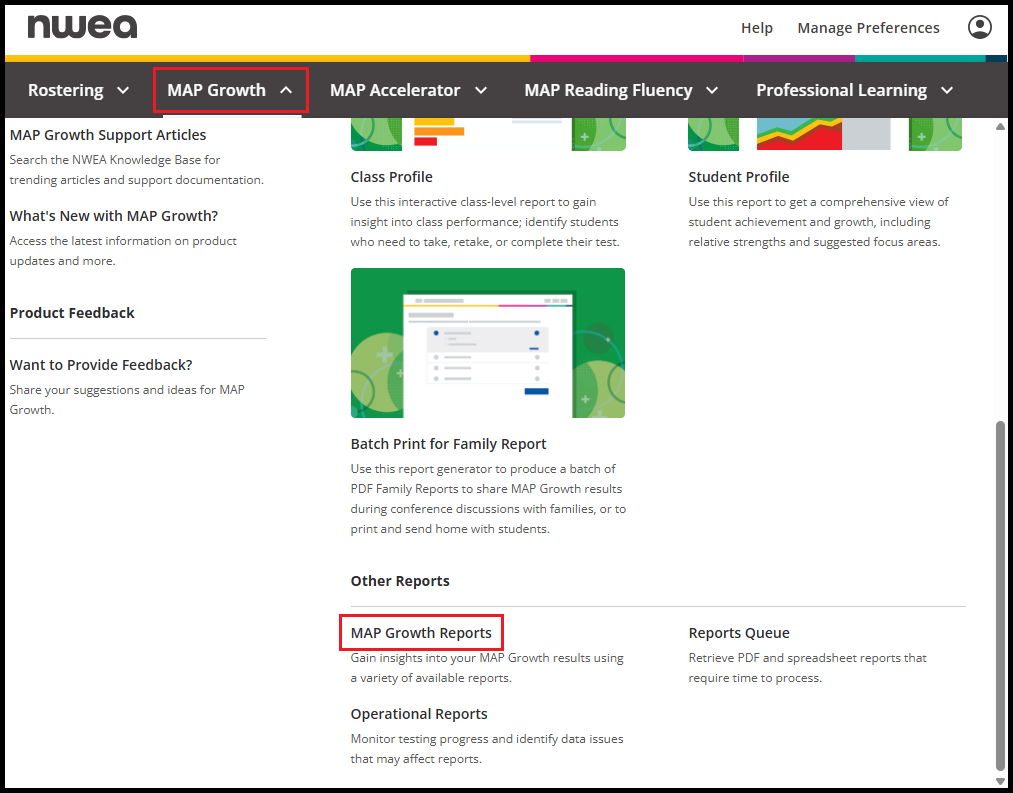
– Click MAP Growth in the menu bar at the top of the page.
– In the panel that expands, scroll all the way down and click on MAP Growth Reports under the Other Reports header.
Step 3 – Accessing the Data Export Scheduler
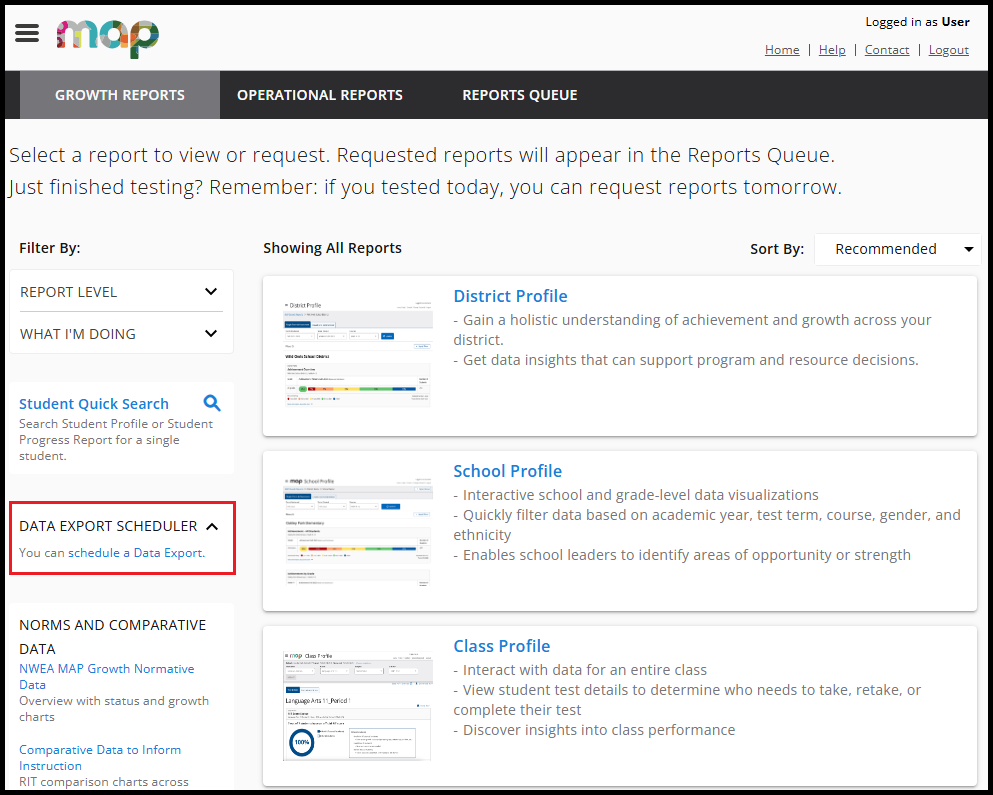
– Click DATA EXPORT SCHEDULER in the left sidebar.
– Select Schedule a Data Export from the expanded menu options in the left sidebar.
Step 4 – Scheduling a Data Export
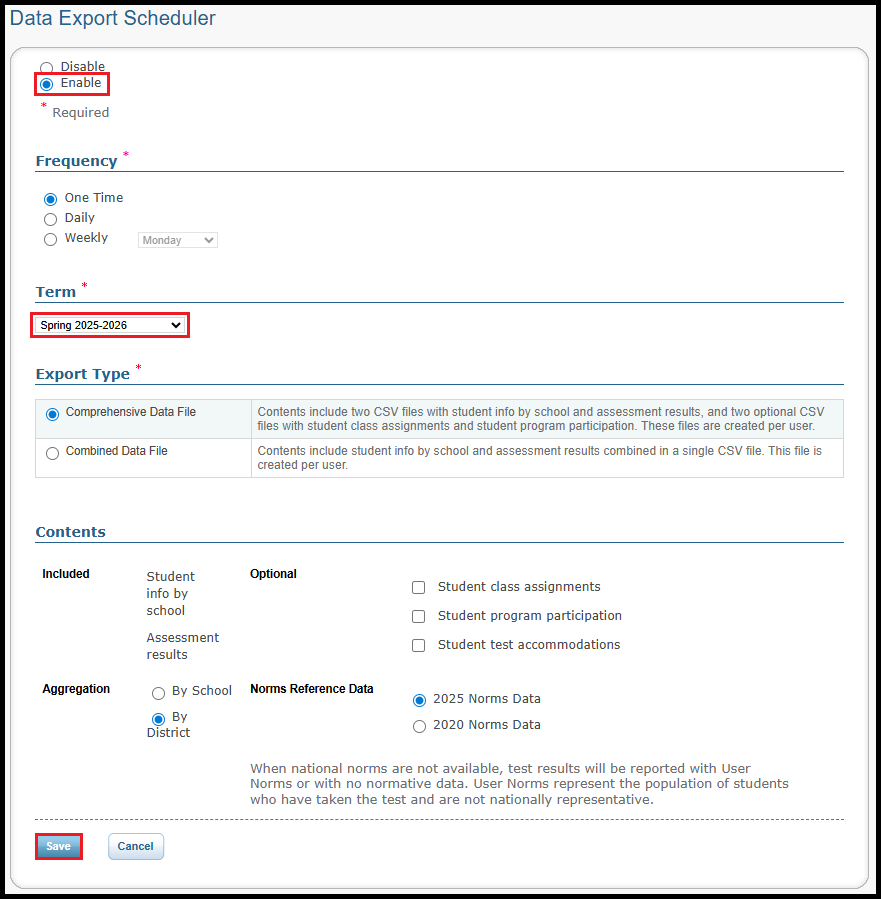
– Select Enable.
– Term will default to the most recent term. Select a different term from the dropdown if desired.
– Keep Comprehensive Data File selected.
– Keep all default selections in the Contents section.
– Click Save.
Step 6 – Sending Data to ECRA Group
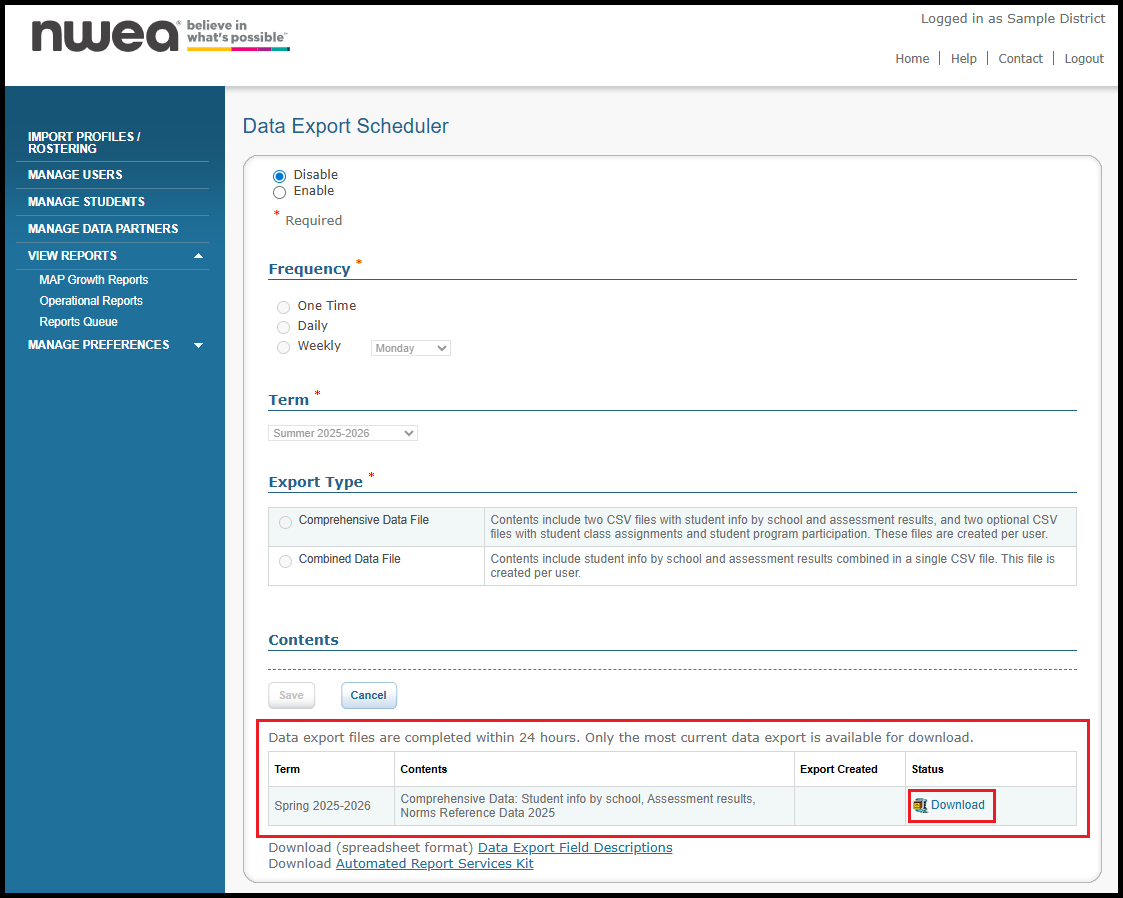
– Rename the downloaded zip file to include the following information before sending to ECRA:
– “MAP”
– District name
– Term and school year selected for download
– Send the downloaded zip folder to ECRA using your district’s secure data transfer folder.
