
Overview
This guide provides step-by-step instructions for exporting Star Assessment data from Renaissance Learning. Follow these instructions to ensure you retrieve and securely send the correct data to ECRA Group.
Instruction Guides:
– Downloading Single Recent Term Data Instruction Guide
– Downloading Historical Data Instruction Guide
Downloading Single Recent Term Data Instruction Guide
Step 1 – Logging In
– Log in to Renaissance Learning using your district’s designated Renaissance login page.
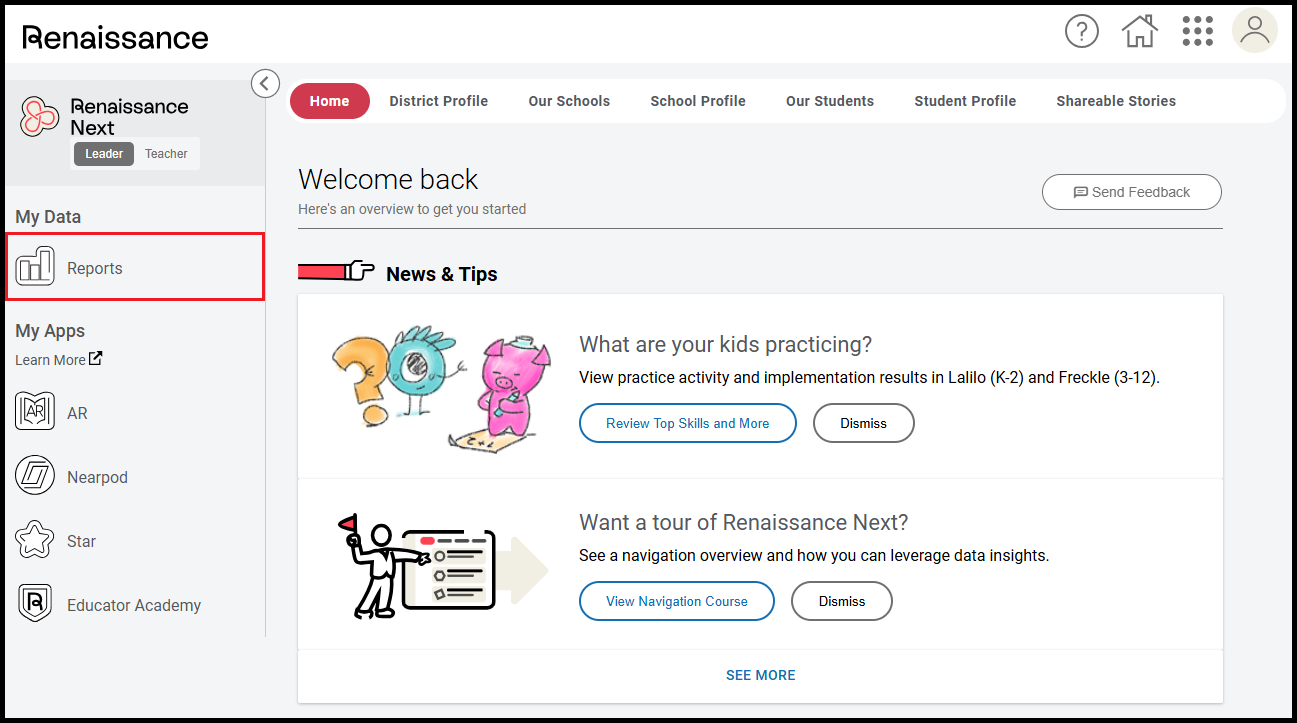
Step 2 – Accessing Reports
– In the left sidebar, click Reports.
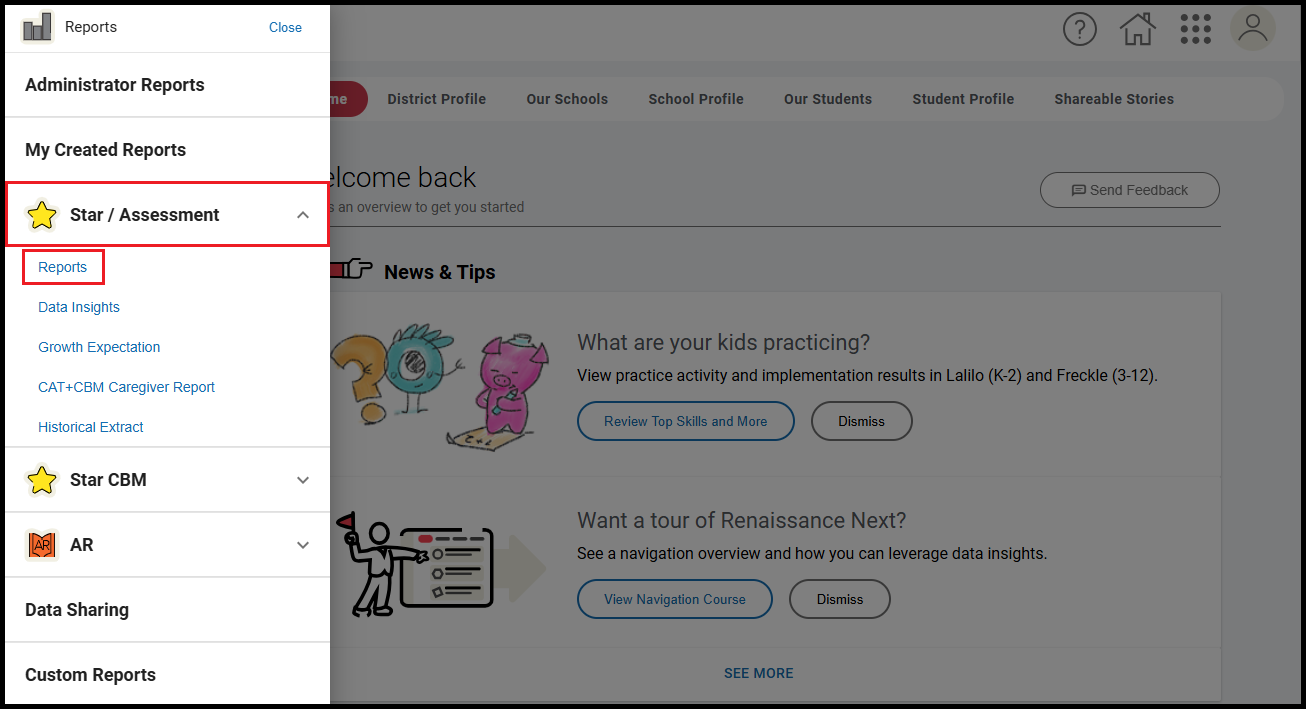
– Click Star / Assessment to show more options.
– Click Reports.
Step 3 – Accessing Star Diagnostic Reports
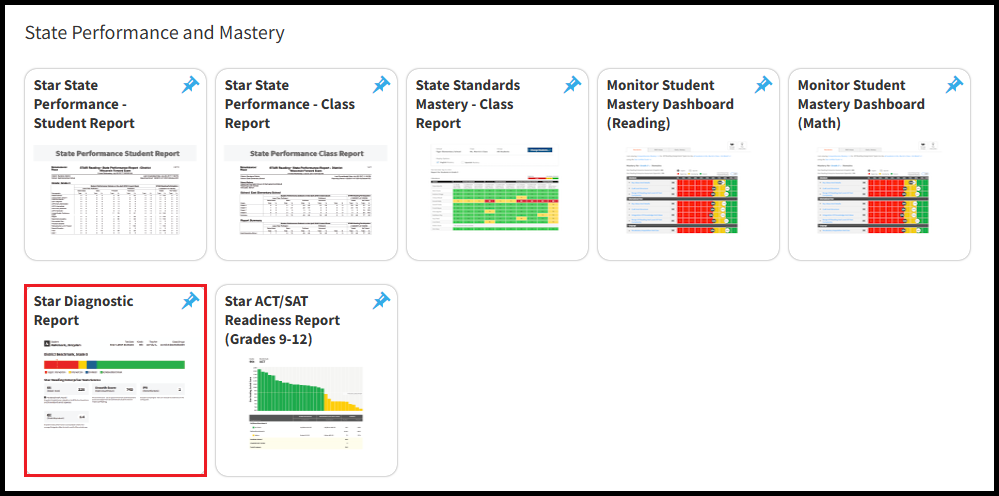
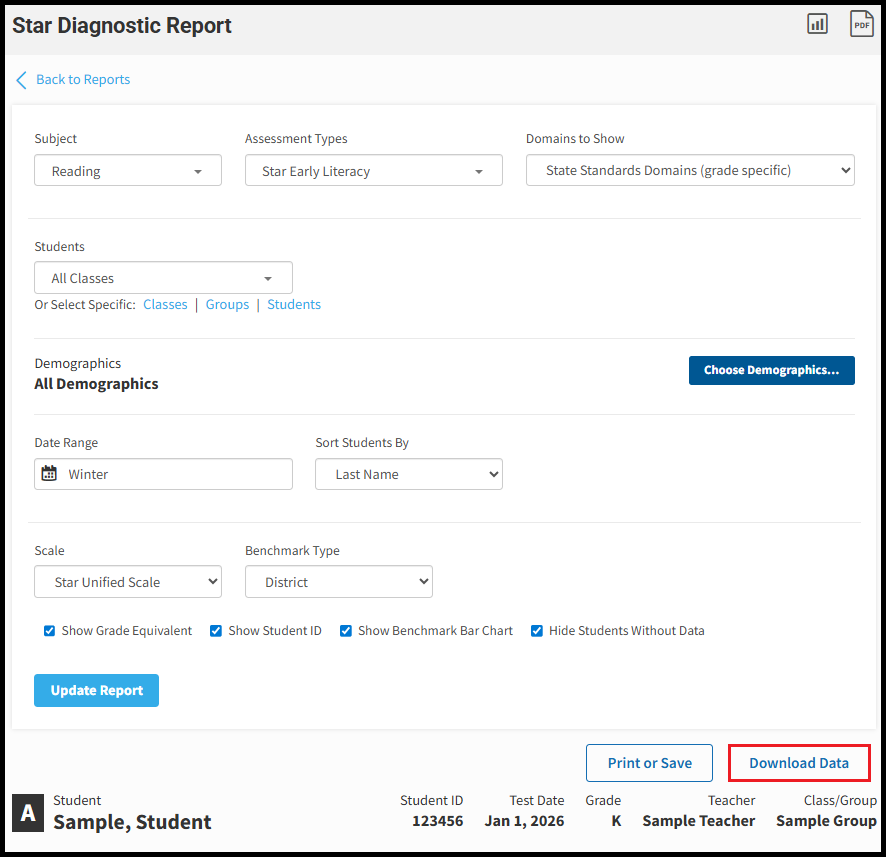
– Scroll to down to find the State Performance and Mastery section and click Star Diagnostic Report.
Step 4 – Customizing a Report
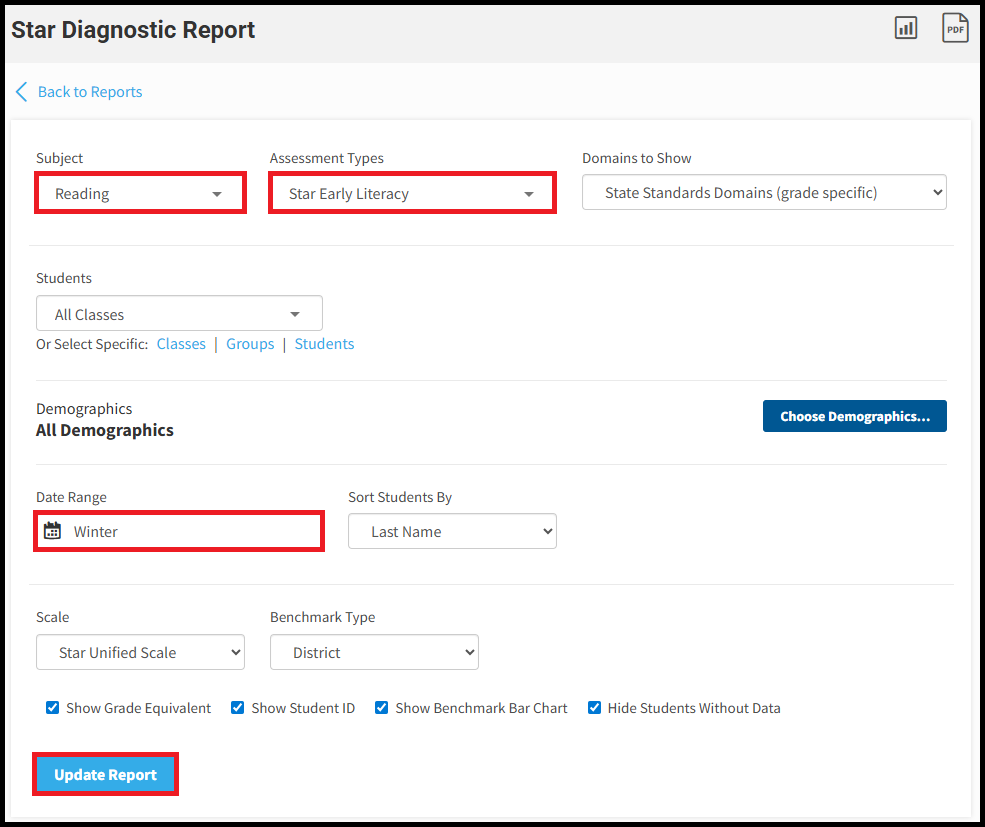
– Subject: Select a subject from the dropdown menu. Note that you can only select one subject at a time.
– Assessment Types: Select an assessment type from the dropdown menu. Note that you can only select one assessment type at a time.
– Date Range: Select the term you would like (e.g., Fall, Winter, Spring). Note that only one score per student is included in the export, so if you select the full school year, you will only get the most recent score for each individual student.
– Click Update Report in the bottom left corner.
Step 5 – Downloading Data
– Click Download Data that appears in the bottom right corner above the individual student reports that are generated.
Step 6 – Downloading Additional Assessments
– Repeat Step 4 and select a different assessment.
– Repeat Step 5 to download the new report.
– Continue repeating Steps 4 and 5 until all assessment reports have been downloaded.
Step 7 – Sending Data to ECRA Group
– Send the downloaded data files to ECRA using your district’s secure data transfer folder.
Downloading Historical Data Instruction Guide
Step 1 – Logging In
– Log in to Renaissance Learning using your district’s designated Renaissance login page.
Step 2 – Accessing Reports
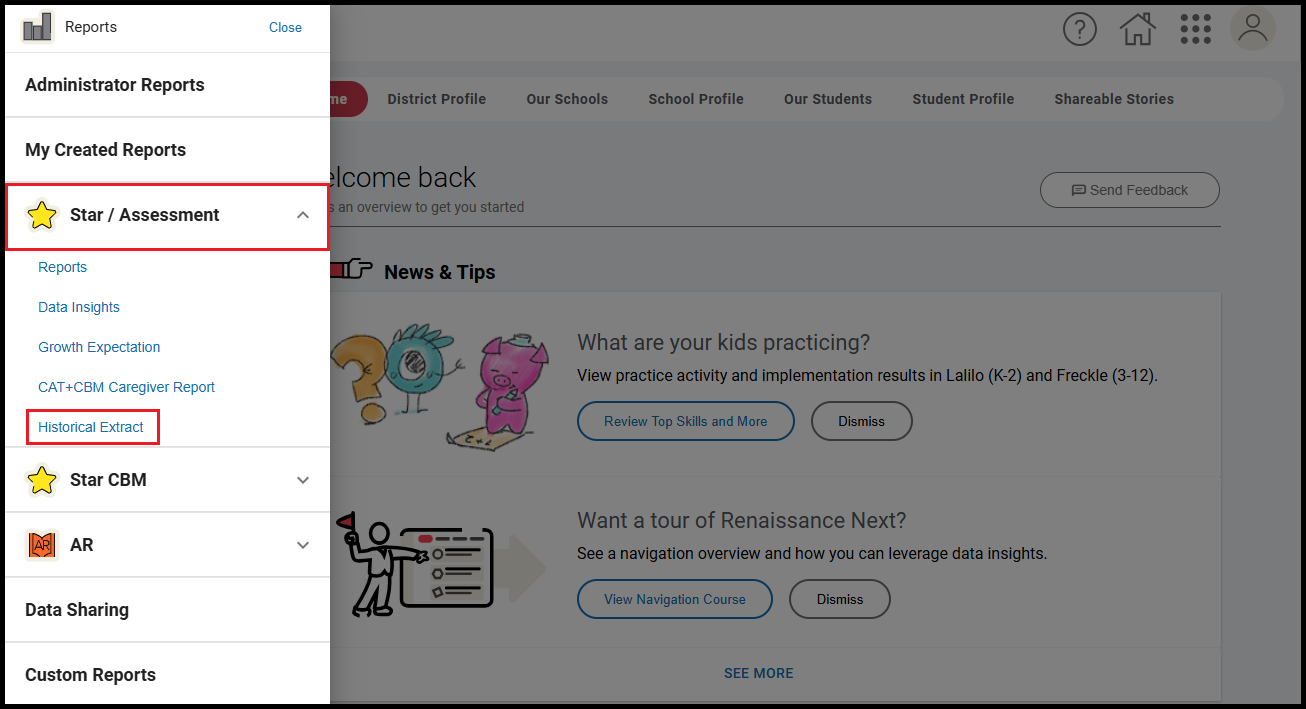
– In the left sidebar, click Reports.
– Click Star / Assessment to show more options.
– Click Historical Extract.
Step 3 – Exporting Historical Data
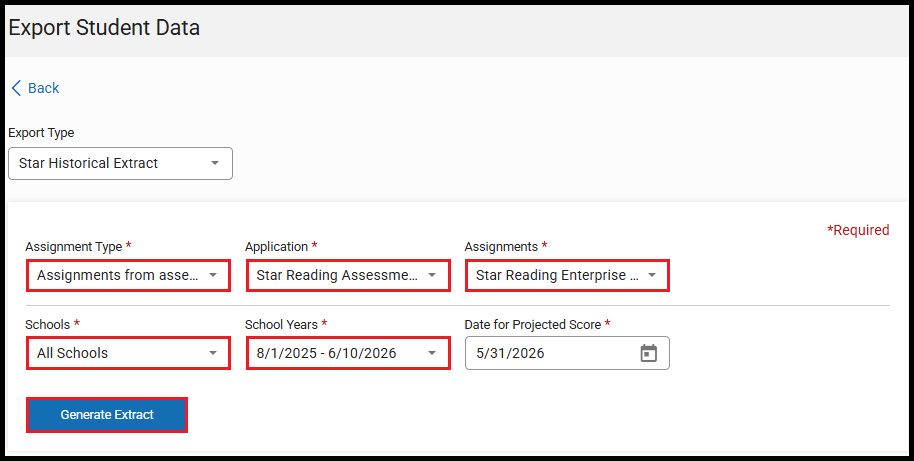
– Assignment Type: Select Assignments from assessment apps from the dropdown menu.
– Application: Select one of the following assessments (depending on assessments given in your district):
– STAR Early Literacy Assessment (English)
– STAR Alfabetizacion temprana Assessment (Spanish)
– STAR Math Assessment (English)
– STAR Matematicas Assessment (Spanish)
– STAR Reading Assessment (English)
– STAR Lectura Assessment (Spanish)
– Assignments: Select the option that contains the word “Enterprise“.
– Schools: Select all schools
– School Years: Select the desired school year(s).
– Date for Projected Score: Keep default date.
– Click Generate Extract.
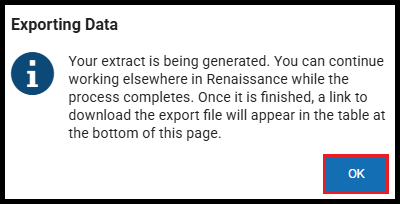
– Click OK in the pop-up window that confirms your data is being exported.
Step 4 – Downloading Data
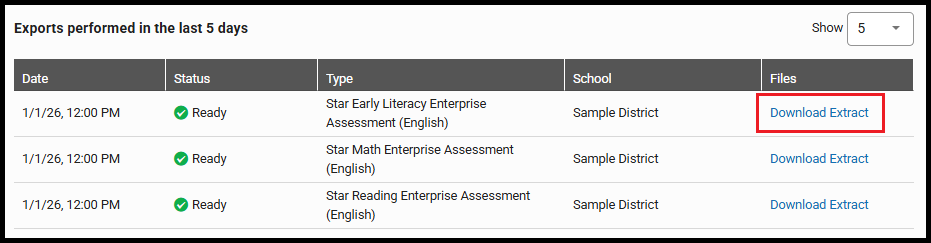
– Your requested export will appear at the bottom of the page with your most recently requested file at the top.
– When the file is ready, click Download Extract on the right side of the file row.
Step 5 – Downloading Additional Assessments
– Repeat Step 3 and select a different assessment.
– Repeat Step 4 to download the new report.
– Continue repeating Steps 3 and 4 until all assessment reports have been downloaded.
Step 6 – Sending Data to ECRA Group
– Send the downloaded data files to ECRA using your district’s secure data transfer folder.
