
Overview
This guide provides step-by-step instructions for exporting ACT Success Data. Follow these instructions to ensure you retrieve and securely send the correct data to ECRA Group.
Instruction Guide
Step 1 – Logging In
– Log in to Success at success.act.org.
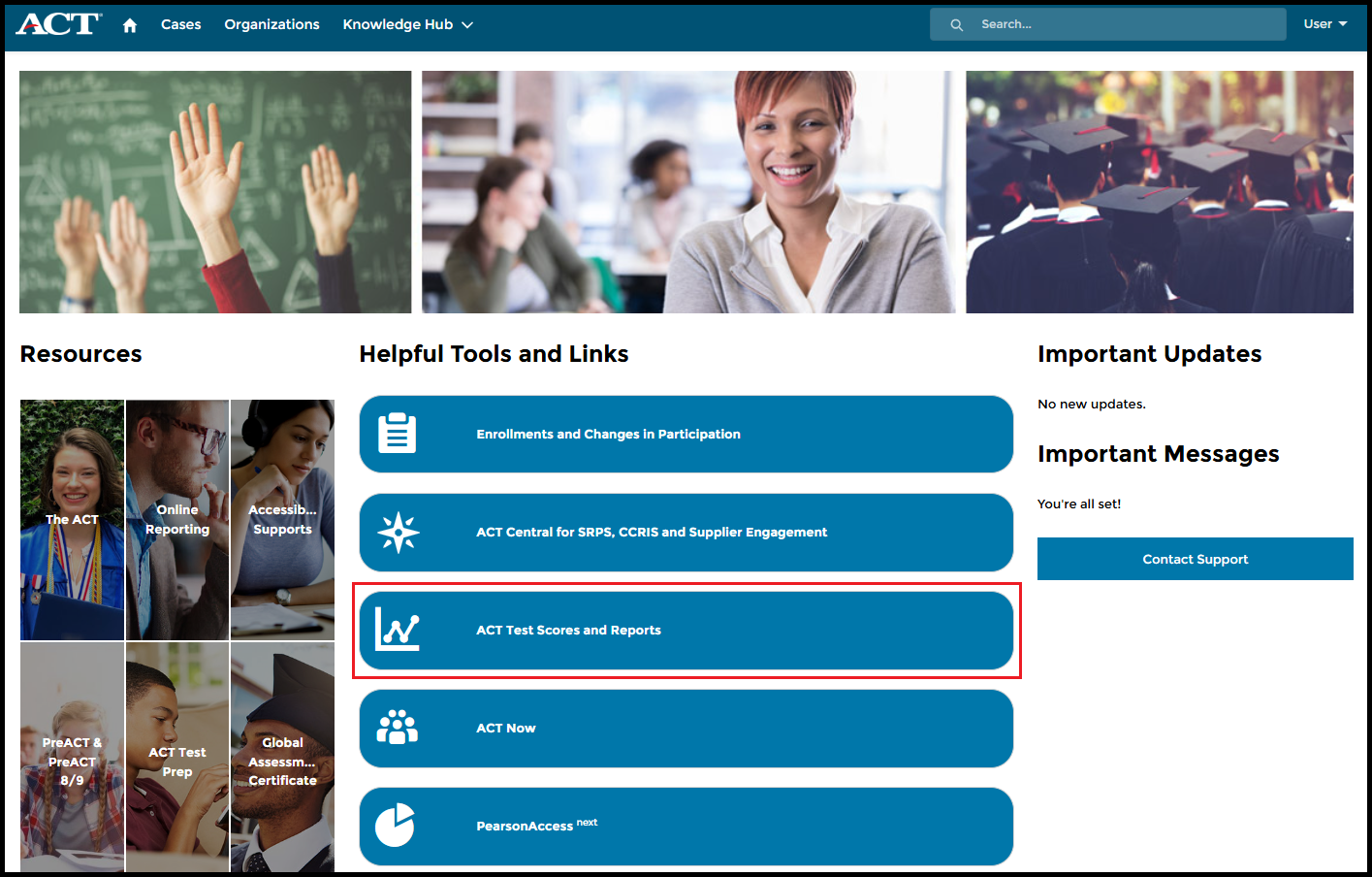
Step 2 – Accessing ACT Test Scores and Reports
– Click ACT Test Scores and Reports.
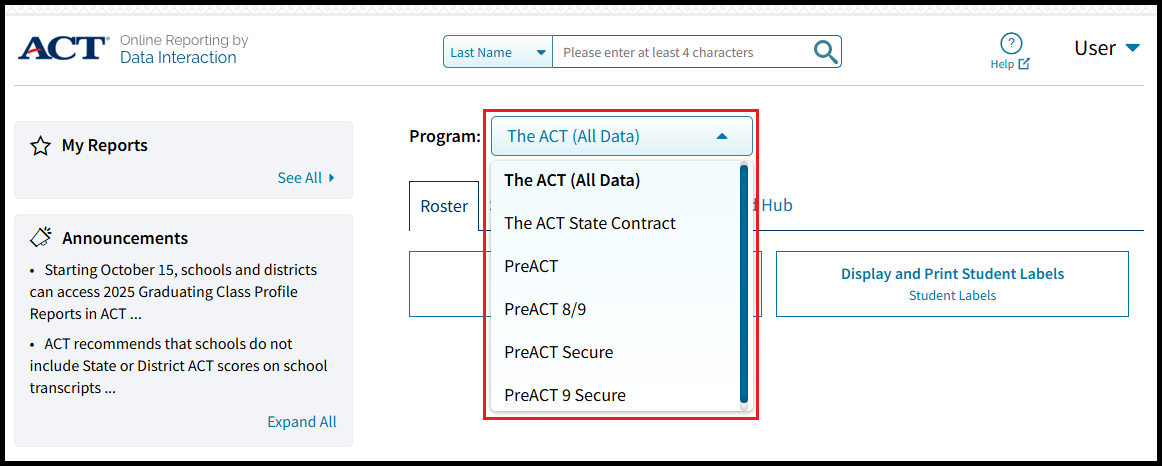
Step 3 – Selecting Program for Download
– Click to expand the Program dropdown and choose the desired assessment.
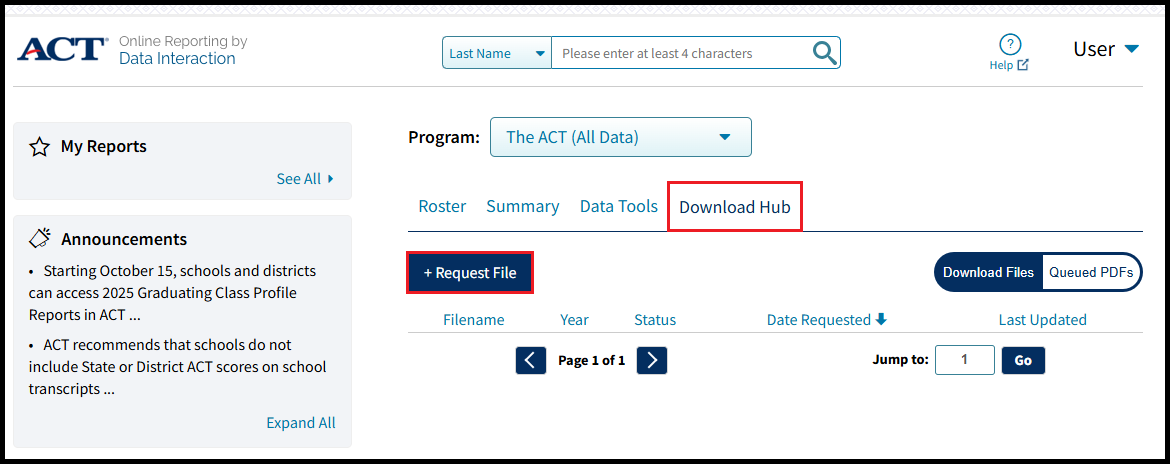
Step 4 – Accessing the Download Hub
– Click the Download Hub tab.
– Click + Request File.
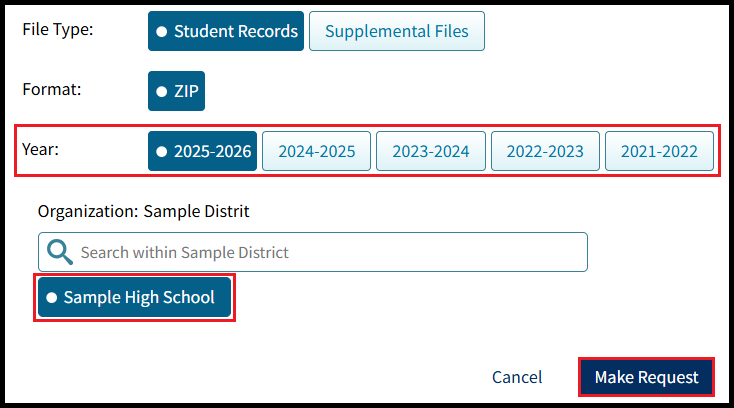
Step 5 – Requesting a Download
– Year will default to the current school year. Select a different school year if desired.
– Select schools to include in the report.
– Click Make Request in the bottom right corner.
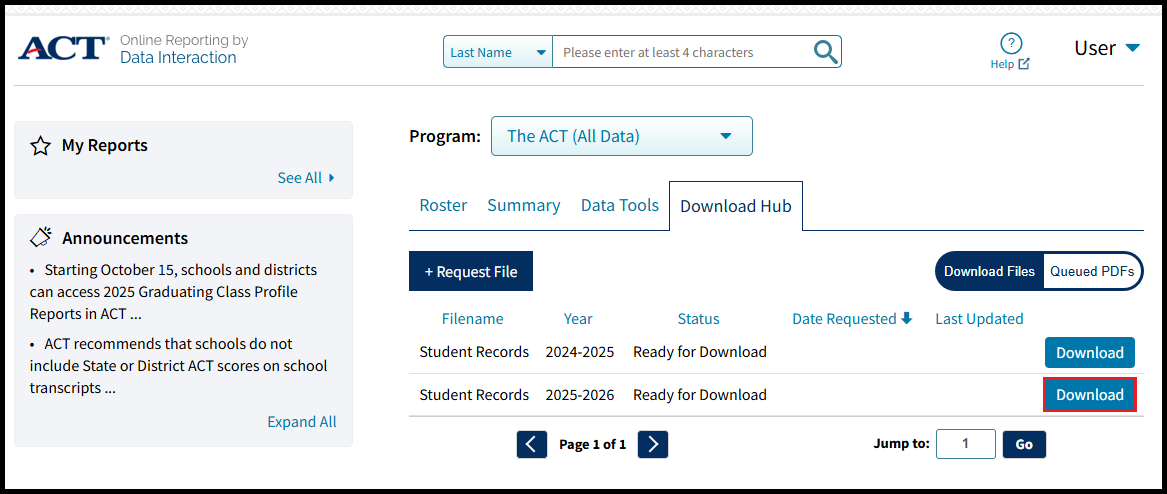
Step 6 – Downloading the Data File
– Back in the Download Hub, click Download to the right of the requested file.
– Rename the downloaded zip file to include the following information before sending to ECRA:
– Assessment name
– District name
– School year selected for download
Step 7 – Sending Data to ECRA Group
– Send the downloaded zip folder to ECRA using your district’s secure data transfer folder.
