
Overview
This guide provides Illinois Districts with step-by-step instructions for exporting historical student demographic rosters from the ISBE IWAS Student Information System (SIS). Follow these instructions to ensure you retrieve and securely send the correct data to ECRA Group.
Instruction Guide
Step 1 – Logging in
– Log into ISBE IWAS at apps.isbe.net/iwas/asp/login.asp.
Step 2 – Accessing the Student Information System
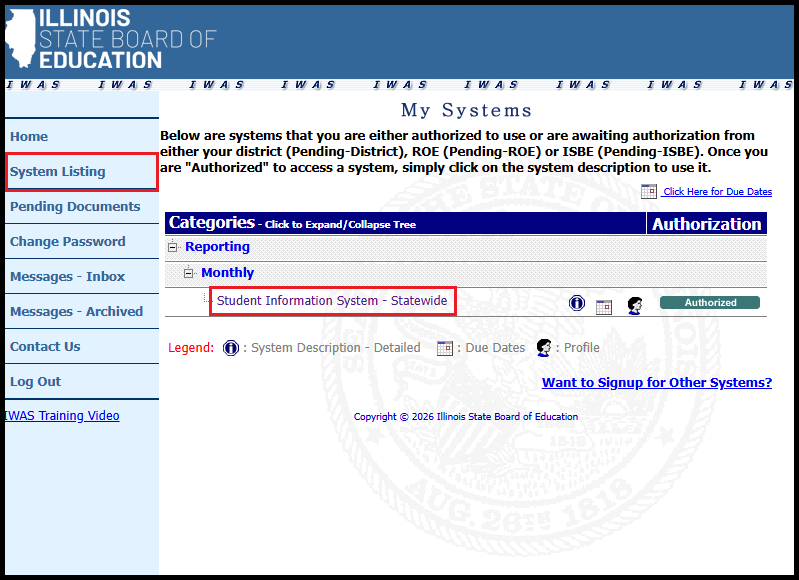
– Click System Listing in the left sidebar.
– Click Student Information System – Statewide.
Step 3 – Accessing Historical Student Demographics Reports
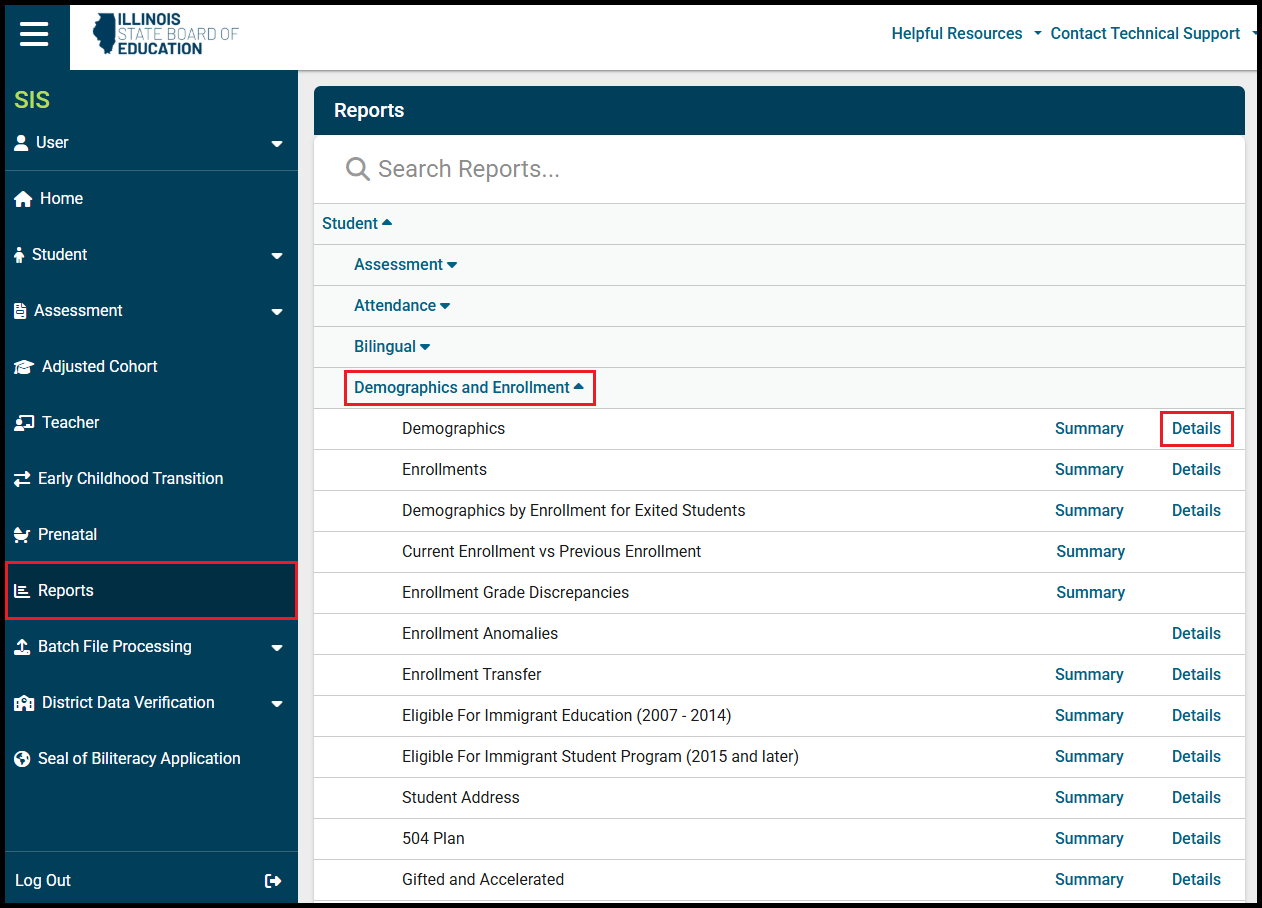
– Click Reports in the left sidebar.
– Click Demographics and Enrollment to expand additional rows.
– On the right side of the Demographics row, click Details.
Step 4 – Downloading Historical Student Demographics Reports
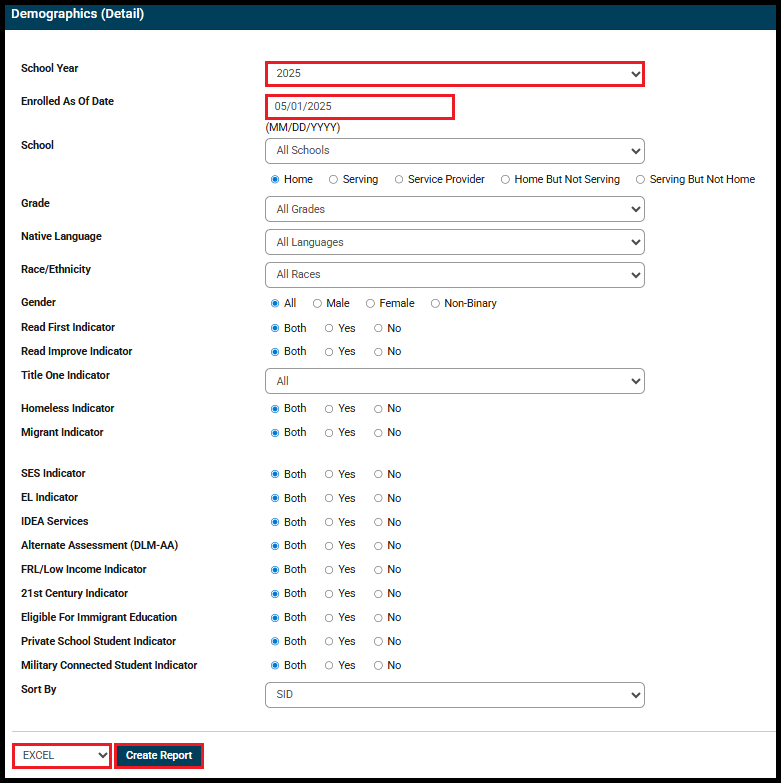
– School Year will default to the current year. Select the desired school year from the dropdown.
– Change the Enrolled As Of Date to be a date near the end of the selected school year (e.g., May 1st for the selected school year).
– Select EXCEL from the dropdown in the bottom left corner next to the Create Report button.
– Click Create Report in the bottom left corner.
– Rename the downloaded file to include the following information before sending to ECRA:
– “Student Roster”
– District name
– School year selected for download
Step 5 – Sending Data to ECRA Group
– Send the downloaded data file to ECRA using your district’s secure data transfer folder.
