
Student Groups allow you to monitor progress for a specific set of students across Fall, Winter, and Spring. Groups can be created in two ways:
- From My Student Groups
- Directly from a Scatterplot
Option 1: Create a Group from My Student Groups
- Navigate to the My Student Groups section of the School Improvement application.
- Click Create Group.
- Enter a Group Name and (optional) Description to describe the purpose of the group.
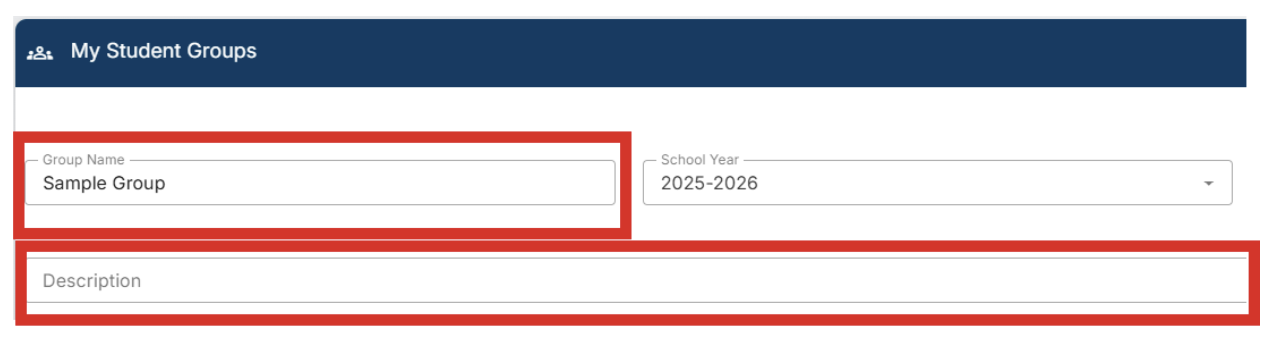
- Select the students you would like to include.
- Click Add Selected.
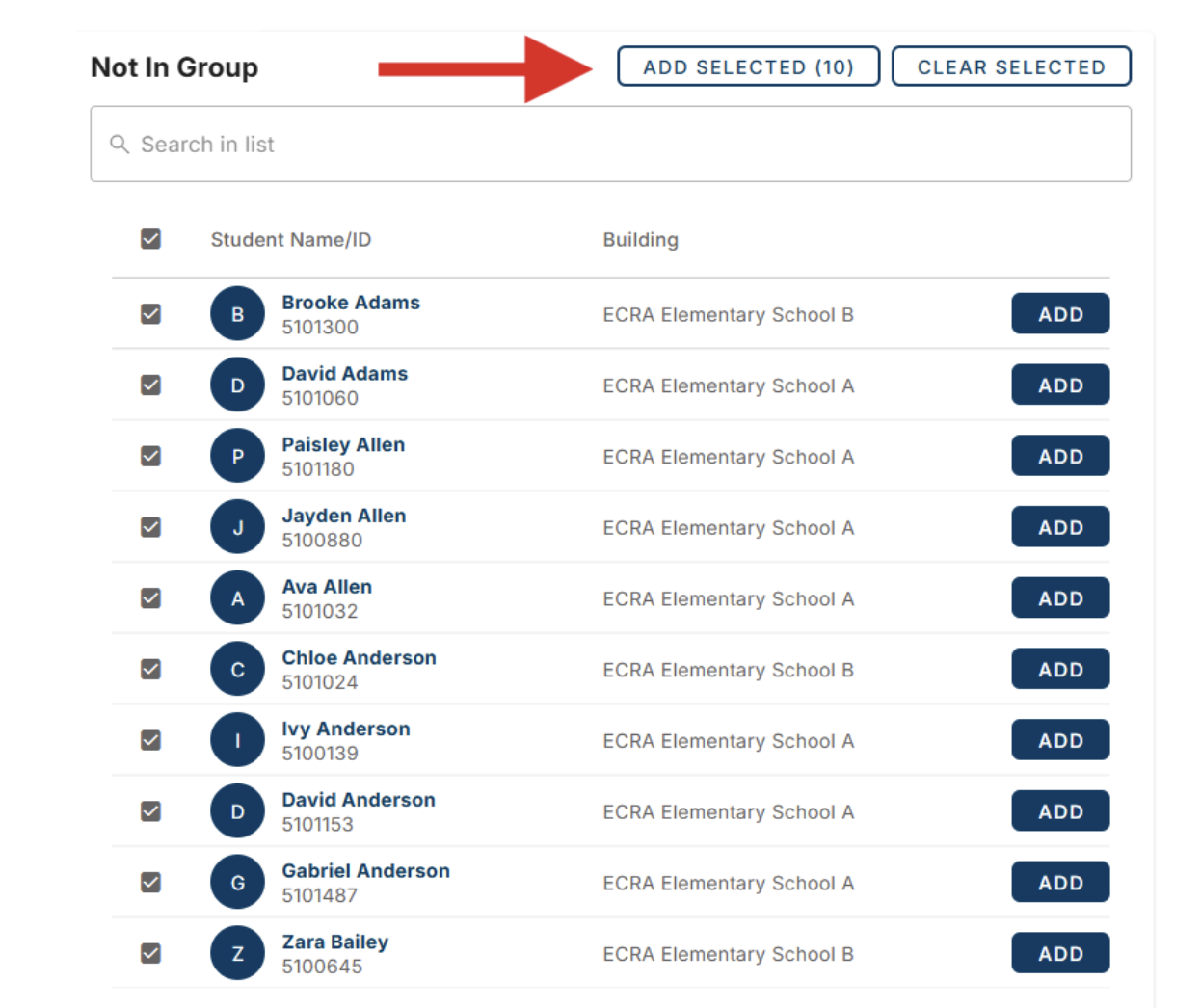
- Click Save in the top-right corner.
- Your group will now appear in the My Student Groups section of the platform.
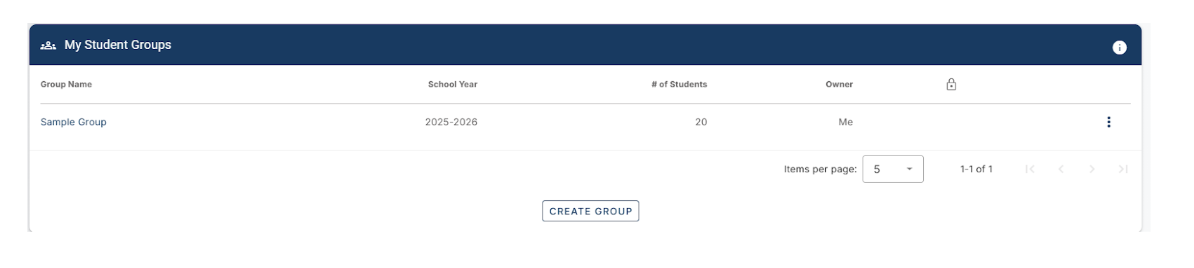
Viewing Group Progress
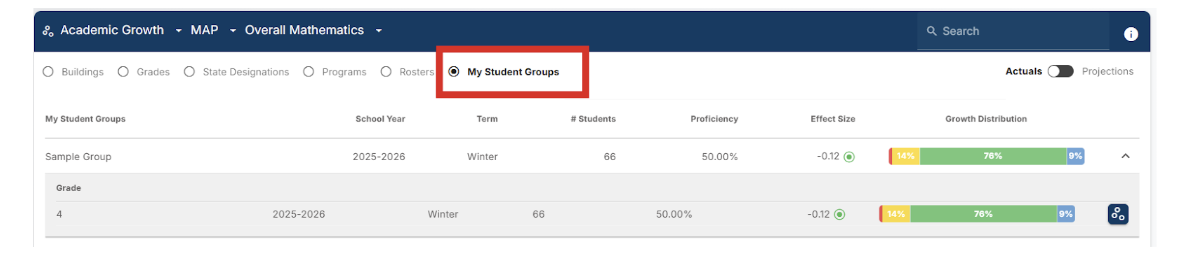
- Use the My Student Groups radio button at the top of the page to quickly view the group’s growth and progress.
- Groups can be reviewed across Fall, Winter, and Spring, including access to the group’s scatterplot.
Option 2: Create a Group from a Scatterplot
- Open any Scatterplot.
- Use the Add Filter button (top-left) to filter students you would like to monitor (for example, low growth or bubble students).
- From the student list on the right side of the scatterplot, select students by checking the box next to each name.
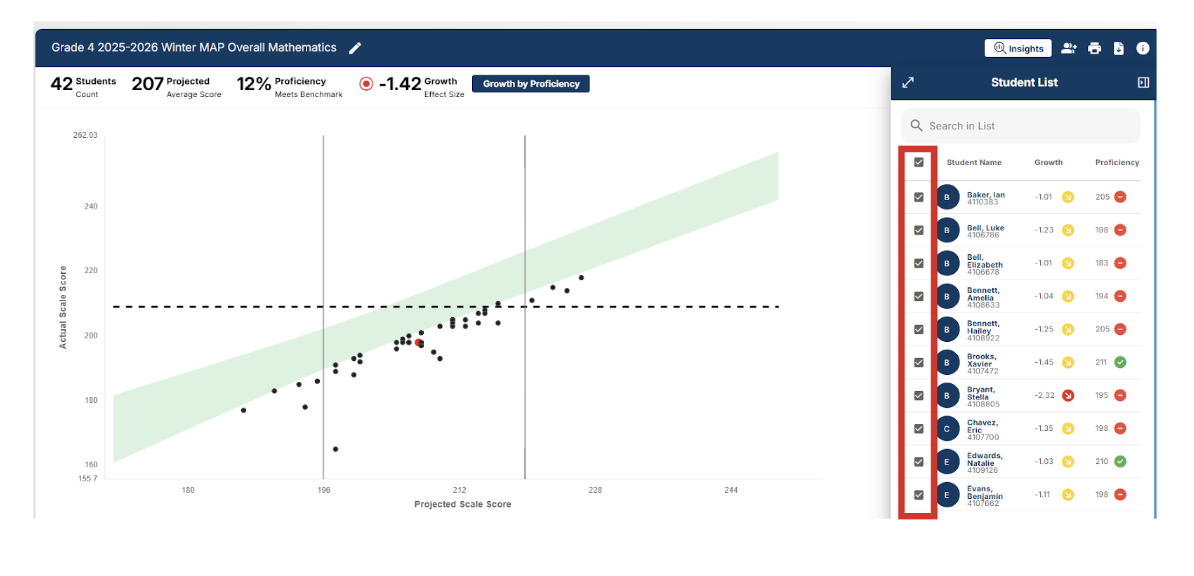
- Click the Student Group button (next to the ‘Insights’ button).
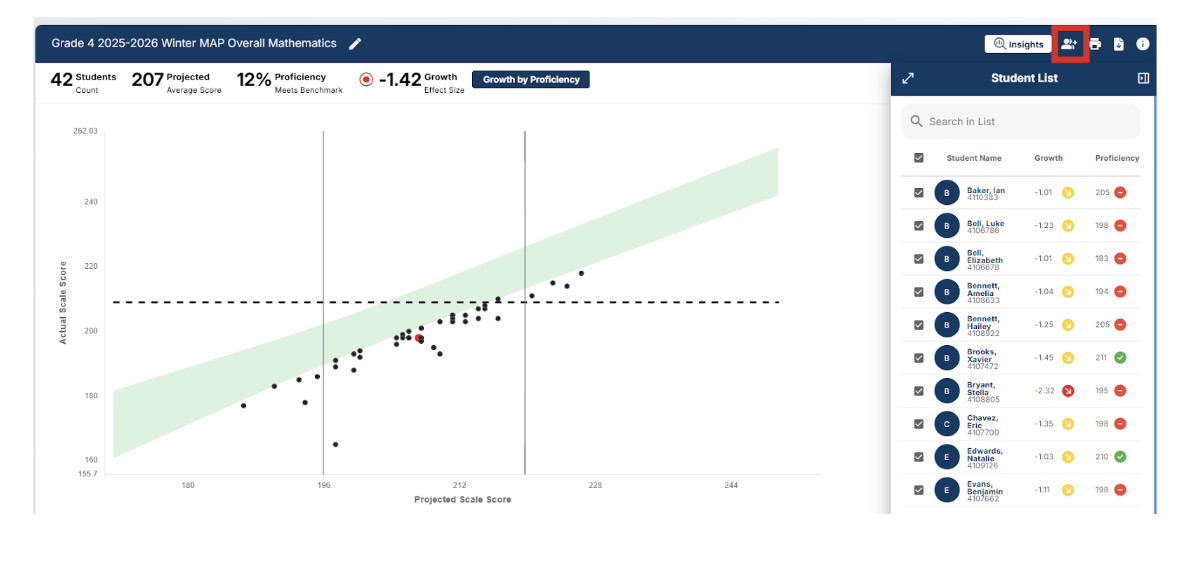
- Enter a Group Name and (optional) Description.
- Click Create Group. Your group is now created.
Accessing Scatterplot-Created Groups
- Groups created from a scatterplot will be available:
- As a filter within scatterplots, and
- In the My Student Groups section on the School Improvement landing page.